Bulk certificate generator
One design.
Every certificate.
Upload your certificate design, add names from a CSV or Google Sheet, and generate personalized PDFs in one batch.
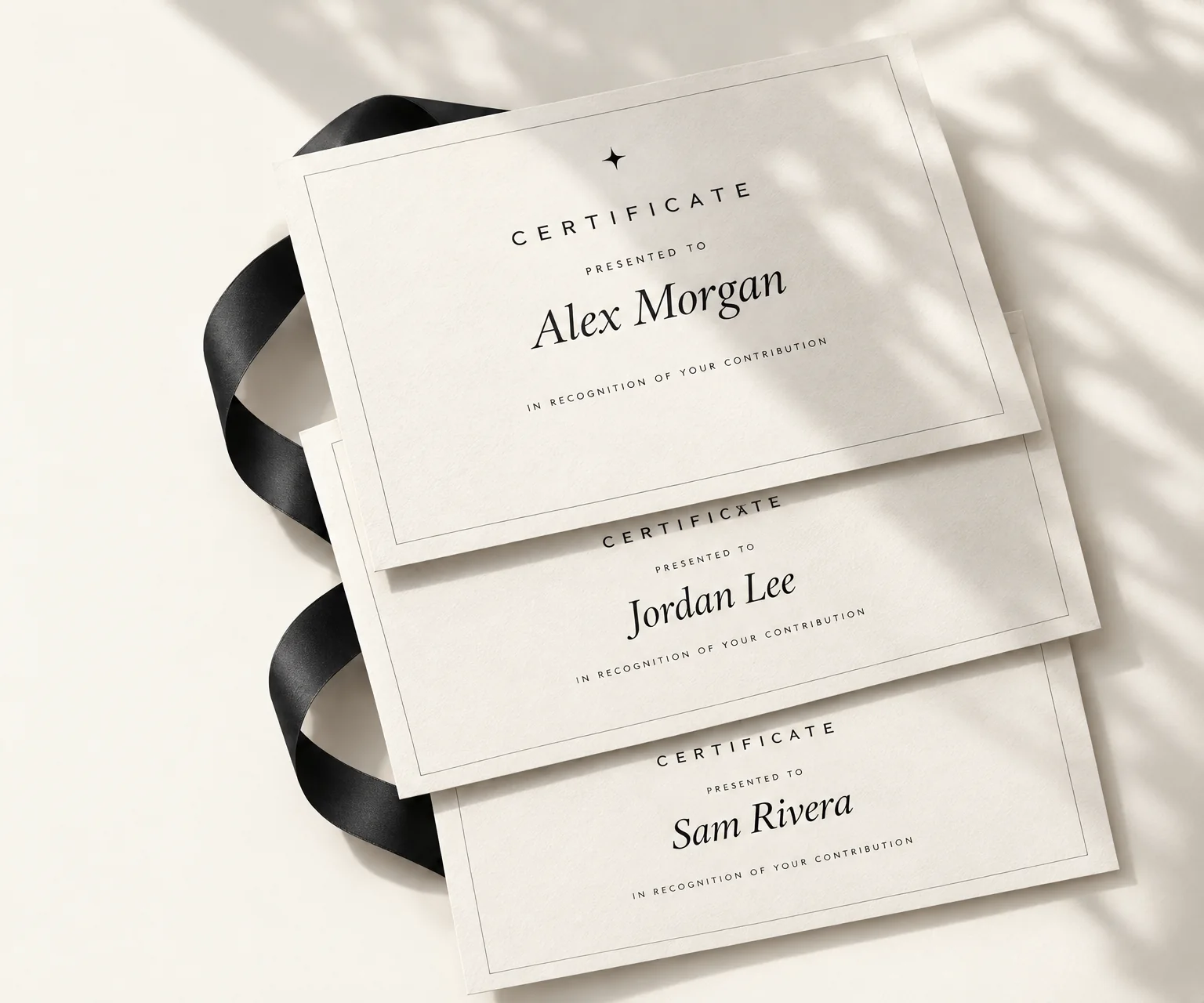
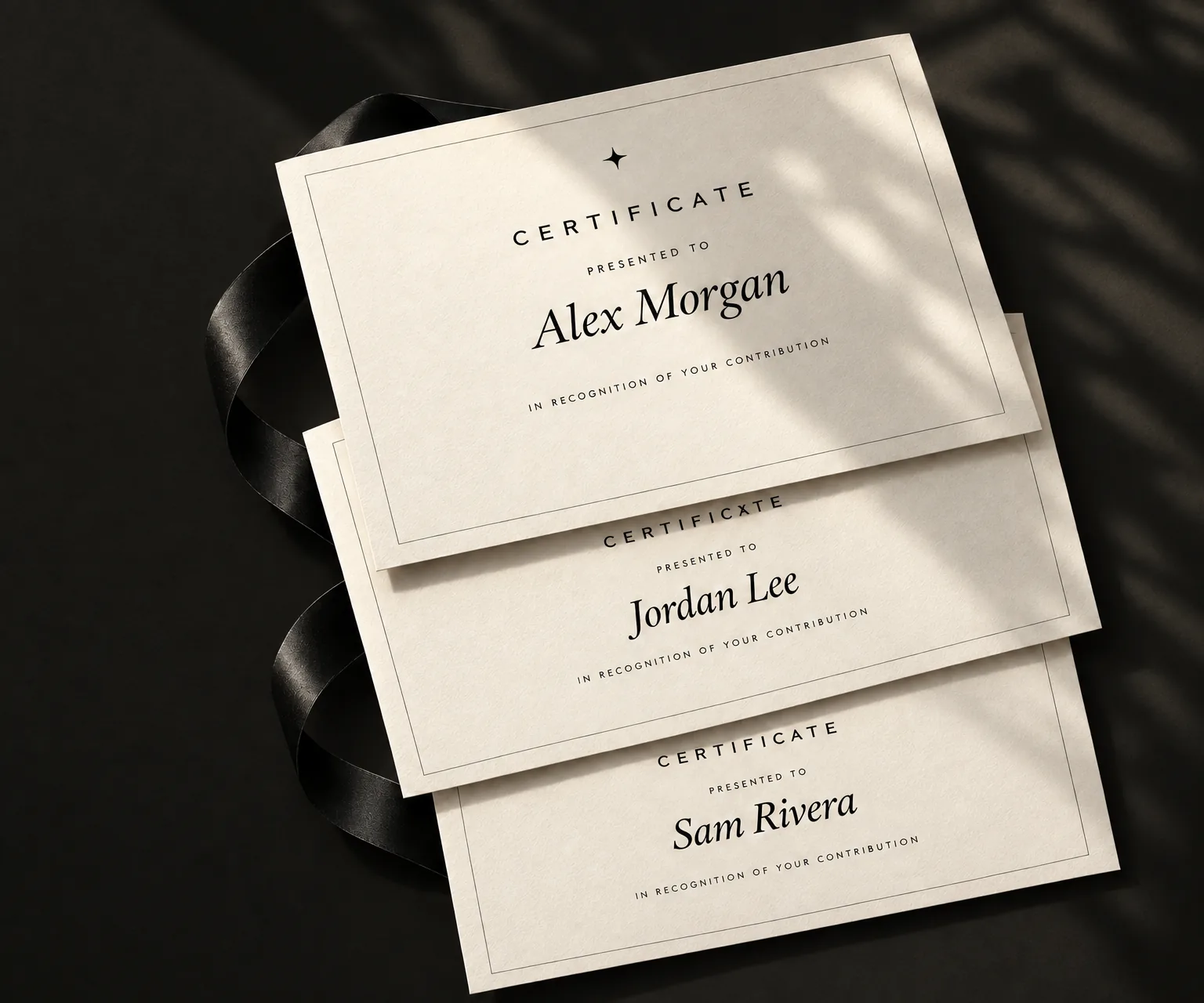
- Free
- No fee per certificate
- Your design
- One layout for the whole batch
- No account
- For creating and downloading
- On your device
- PDFs made in your browser
Your reason.
Your words. Your design.
Certly does not decide what counts. Use it for completion, participation, contribution, a milestone—or any moment you choose to acknowledge.
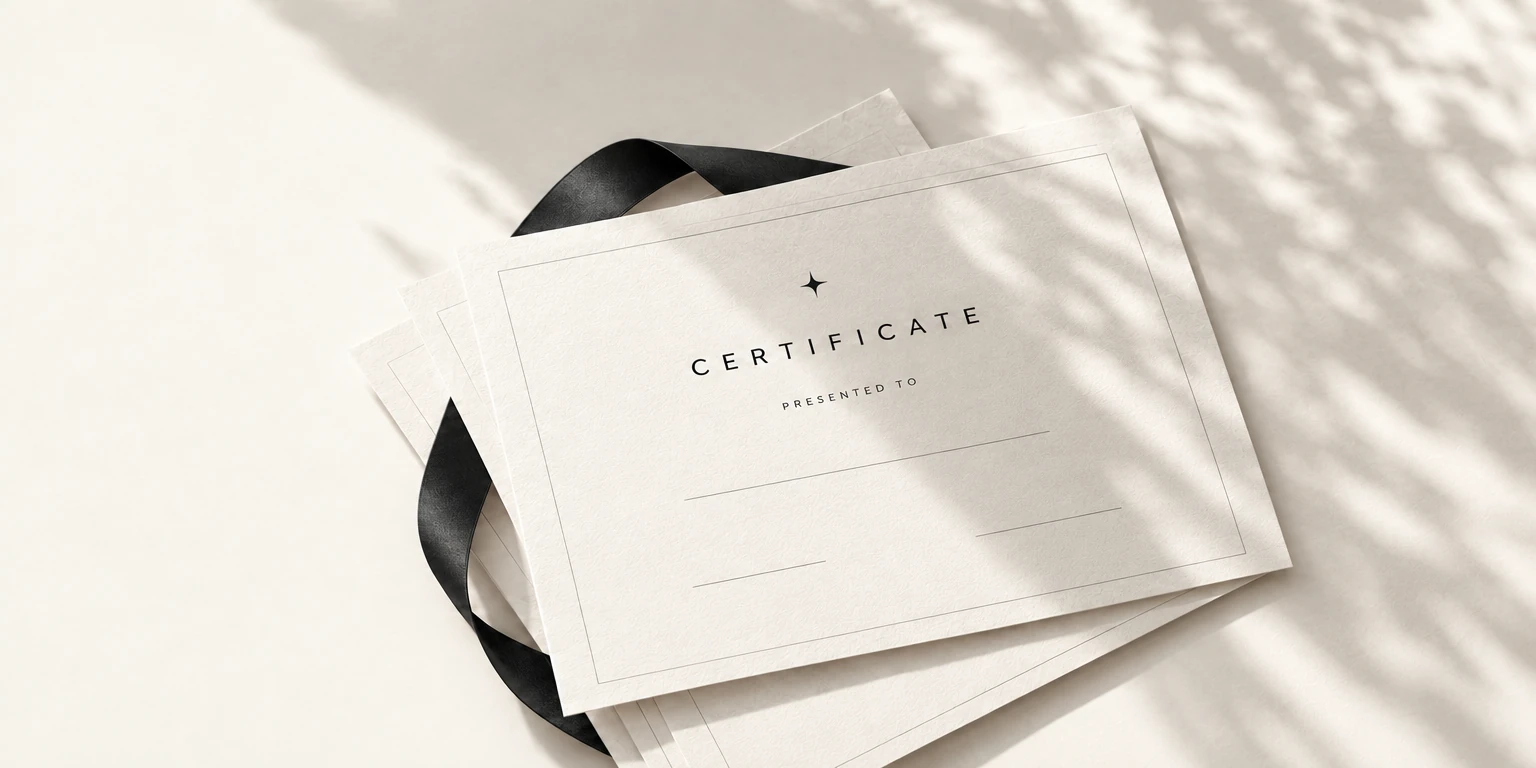
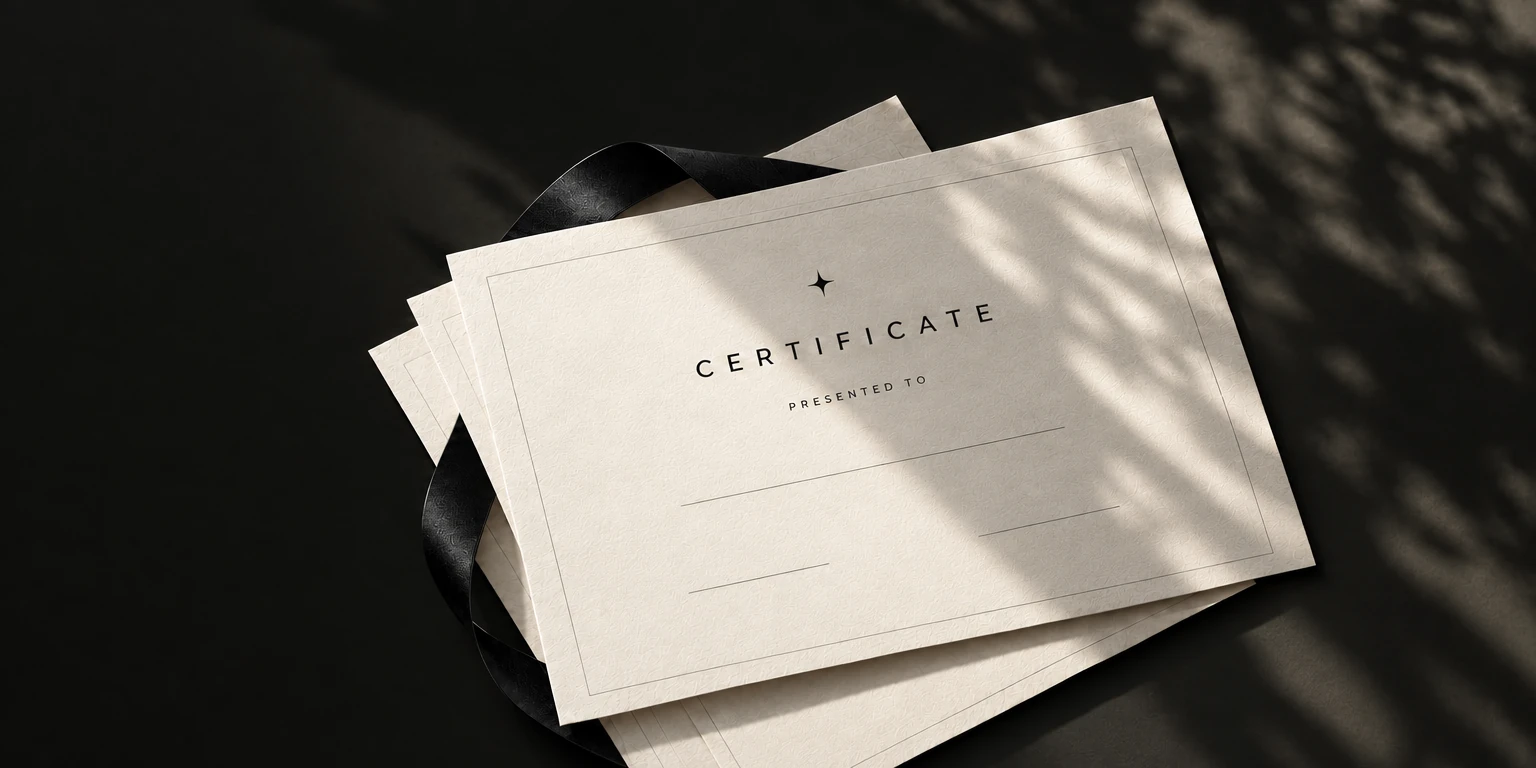
Start with the list
you already have.
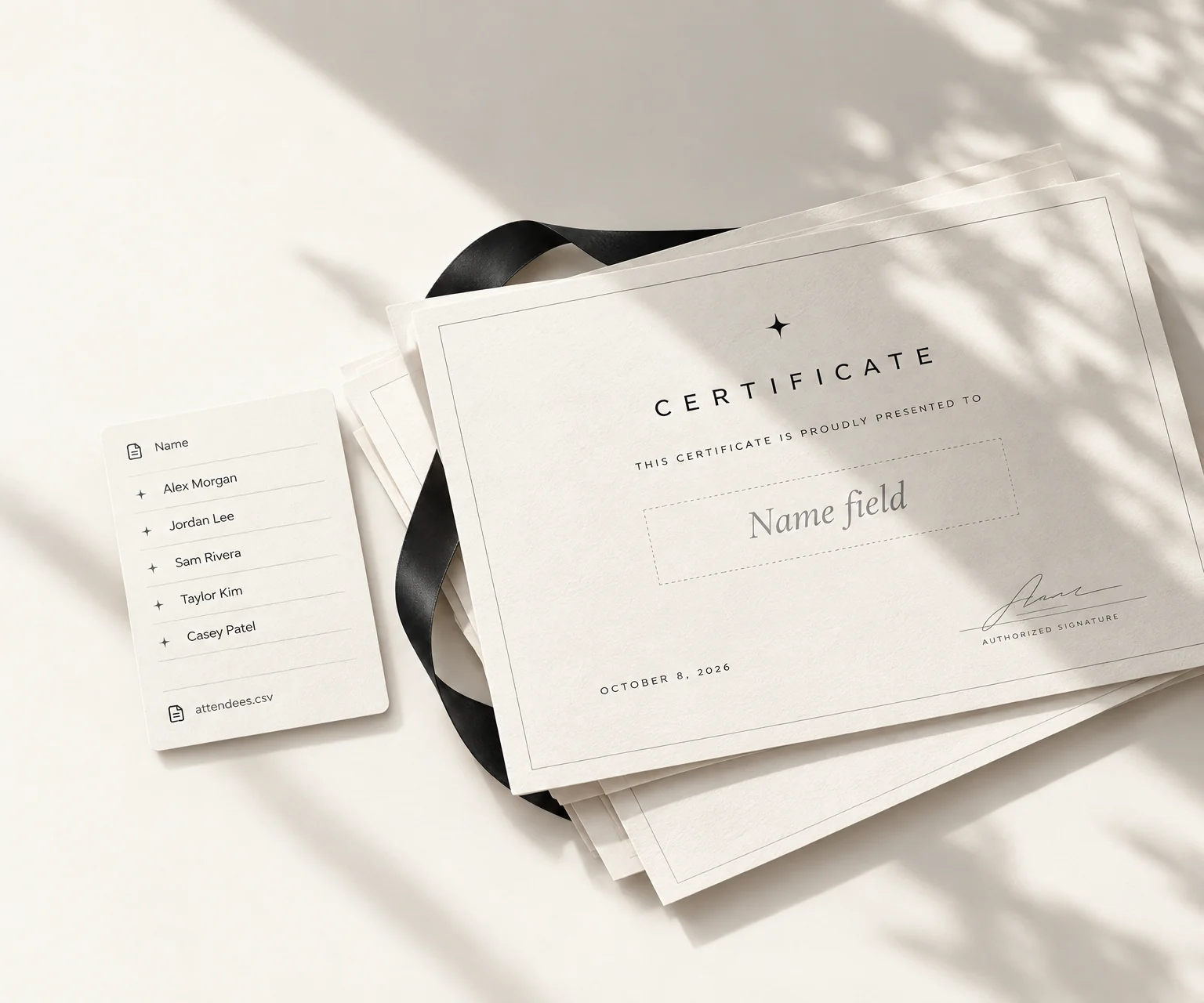
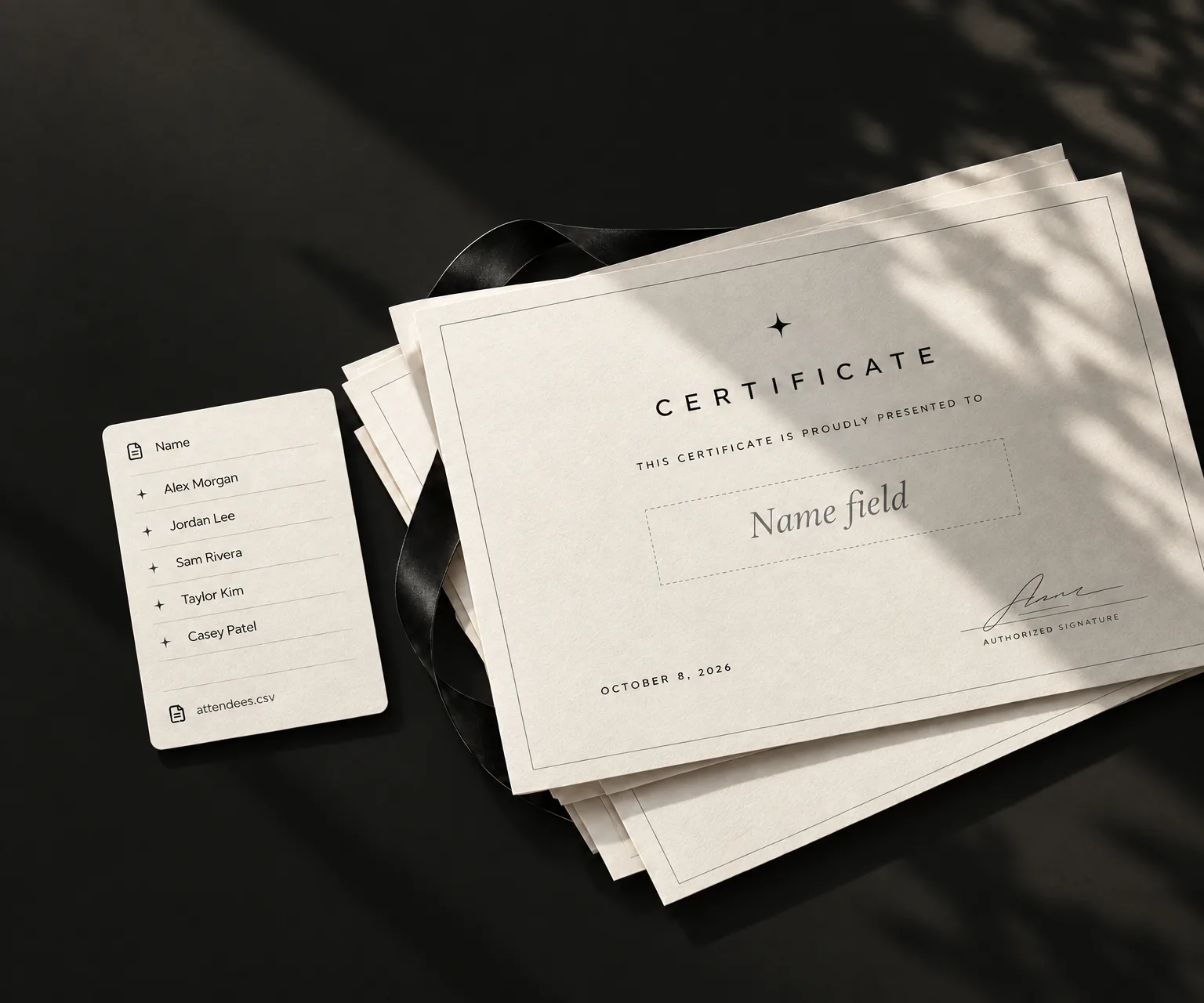
Names in a spreadsheet. A design you like. That's enough to begin. Certly connects the two, so the layout stays consistent while each certificate becomes personal.
Check the list once, not every file.
Use a CSV or a public Google Sheet. Review spelling and remove duplicates before importing.
A rough comparison
More names. Not more name edits.
Move the slider to compare the estimated effort.
These are illustrative estimates, not measured results. Device speed, setup, and Gmail limits affect the time.
Manual Method
~4h 0m
Estimated repeated editing, export, and attachment work.
Certly
~4 minutes
Estimated batch preparation. Email delivery may take longer.
One template.
A room full of names.


Step 01
Choose the background
Upload a PNG or JPG with space for the details that change.
Step 02
Add the people
Import your recipient list from a CSV or public Google Sheet.
Step 03
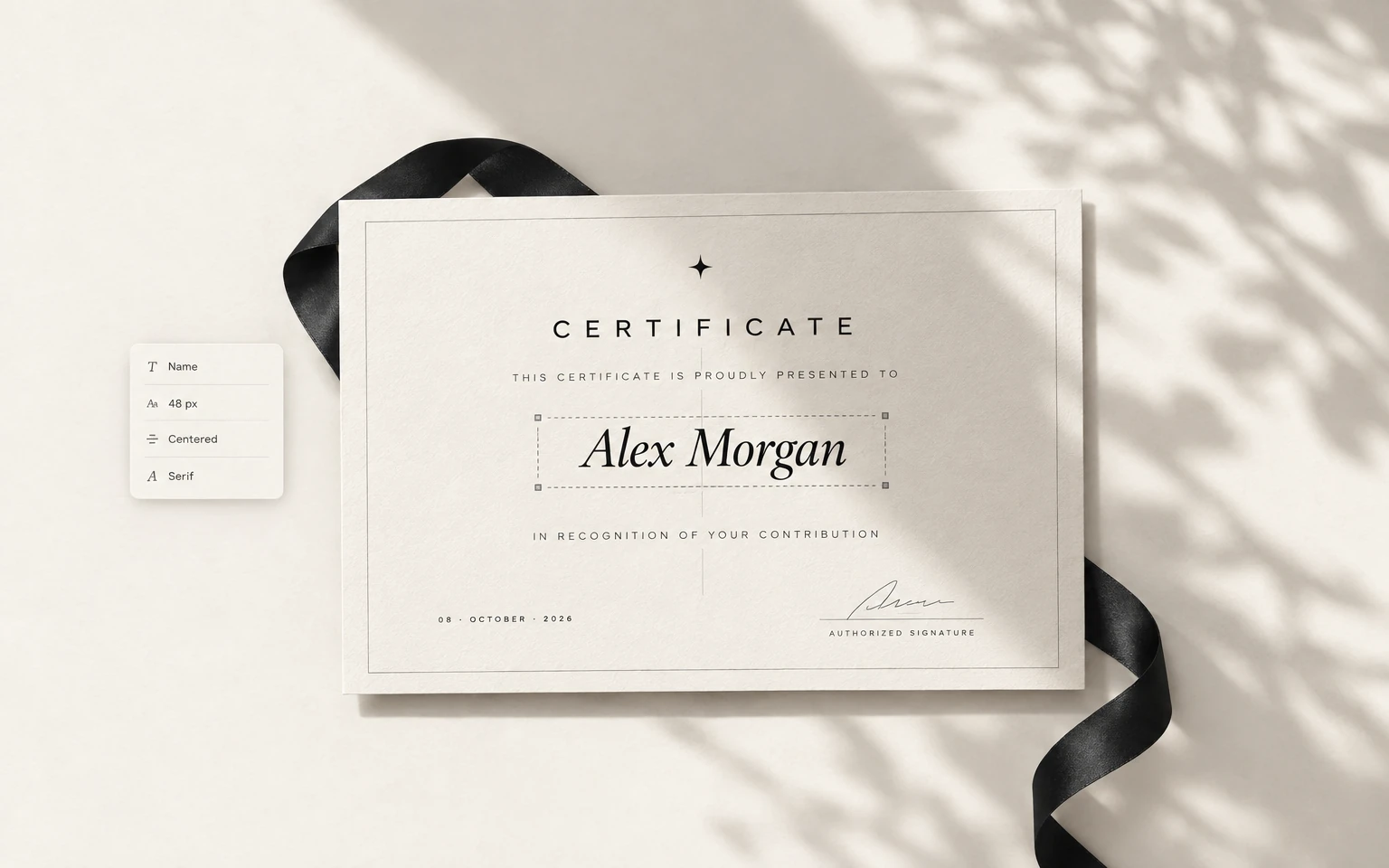
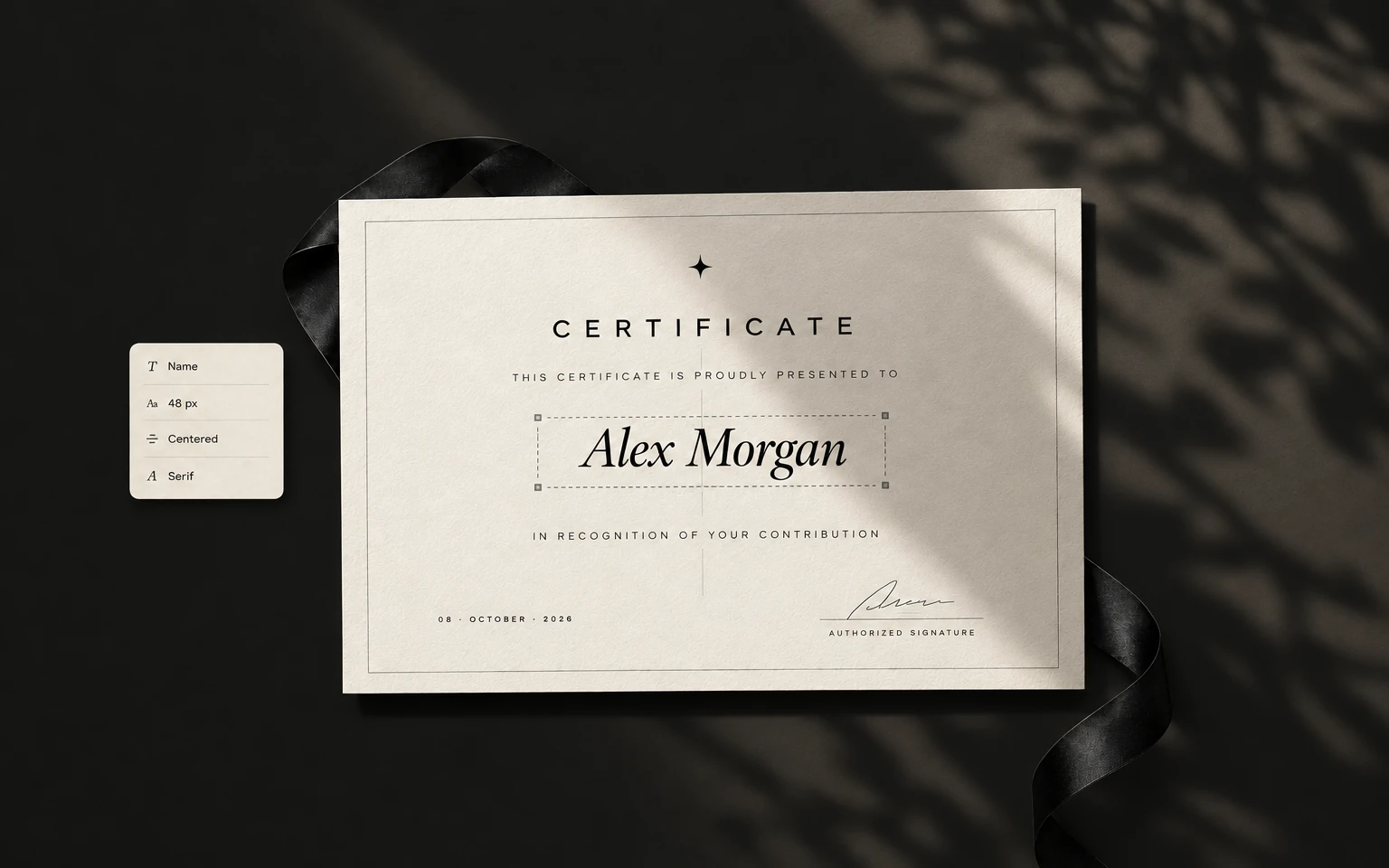
Put each detail in place
Add fields, adjust their style, and preview the names. Then generate your PDFs.
Step 04
Choose how to share
Download the ZIP, or connect Gmail to send a PDF to each recipient.
Gmail asks for send-only permission. You can revoke it in your Google Account.
The making happens
right here.
Your browser turns the template and rows into PDFs and saves the batch on this device. No roster upload is needed to generate. If you send with Gmail, the API relays each message and attachment to Google.
Take a closer look: Use your browser's Network tab to inspect PDF generation separately from Sheets import and email delivery.
Generation is local. Delivery is a choice.
Files first.
Download a ZIPKeep the whole batch as files.
Optional: send with GmailDelivery leaves the browser. The API relays the message and PDF to Gmail.
A few things to know.
What do I bring to Certly?
Do I need to pay or sign up?
Does AI process my list?
How does one design become a batch?
What stays on this device?
See all FAQs on the complete guide →
Find the workflow that matches yours.
- Full step-by-step guideThe complete walkthrough: template setup, field mapping, generation and Gmail delivery.
- Google Sheets certificate generatorPull names straight from a public Google Sheets URL instead of exporting a CSV first.
- Hackathon certificate generatorWinner, runner-up and participation batches for Devfolio, Unstop and MLH-style events.
- Certly vs CertifierAn honest side-by-side, including the cases where Certifier is the better choice.
- Workshop certificate generatorBest practices for creating and sending certificates to workshop participants at scale.
- Blog & guidesArticles on certificate creation, bulk delivery, best practices, and tool comparisons.
Your next batch
starts here.
Bring a design. Add your list. Take the finished PDFs with you.